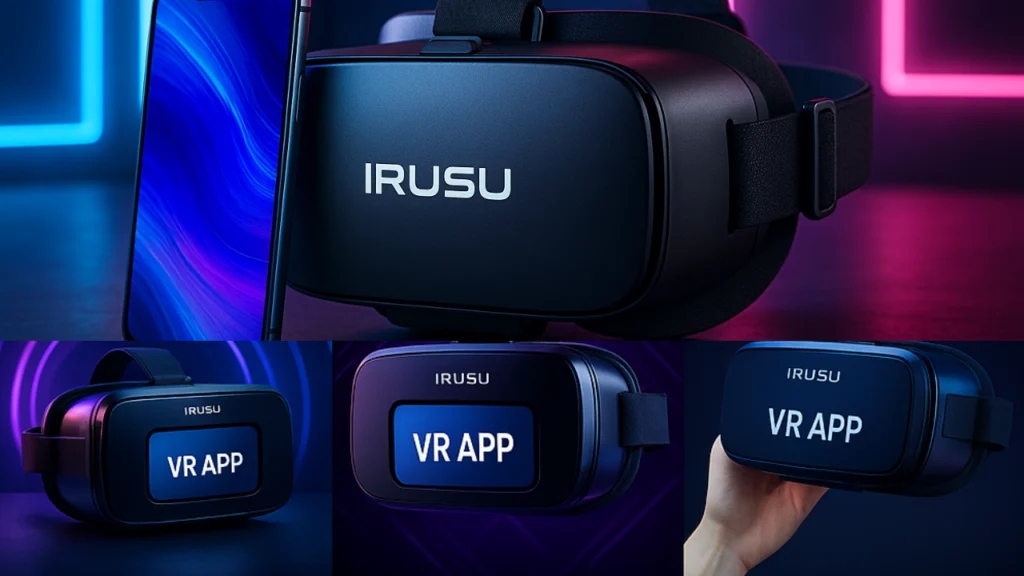
The Irusu VR App is one of the most widely used VR players for Android users who want to enjoy immersive experiences without investing in expensive headsets. Designed specifically for Irusu devices, it allows you to watch 360° videos, play SBS 3D content, stream VR movies, explore VR travel apps, and interact with dozens of VR-compatible experiences on your smartphone.
Whether you’re new to virtual reality or already own an Irusu VR headset, this guide will walk you through everything. Set up, features, best apps, troubleshooting, and advanced tips to get the smoothest VR experience possible.
By the end, you’ll understand exactly how the Irusu VR App works, how to set it up correctly, which apps pair best, and how to troubleshoot issues like drifting, blur, or motion sickness.
What Is the Irusu VR App?
The Irusu VR App is a dedicated VR media player built for Irusu headsets and Android smartphones. It supports:
- VR side-by-side movies
- 360° videos
- SBS 3D videos
- VR YouTube links
- VR cinema mode
- VR photo galleries
- Local 3D/360° playback
The main reason for its popularity is its compatibility with almost all Irusu VR headsets, including:
- Irusu Play VR
- Irusu Mini VR
- Irusu Pro VR
- Irusu PRO+
- Irusu VR Box models
Because the app is optimised for Irusu devices, it offers better lens alignment, gyroscope calibration, screen-splitting fidelity, and distortion correction than generic VR apps.
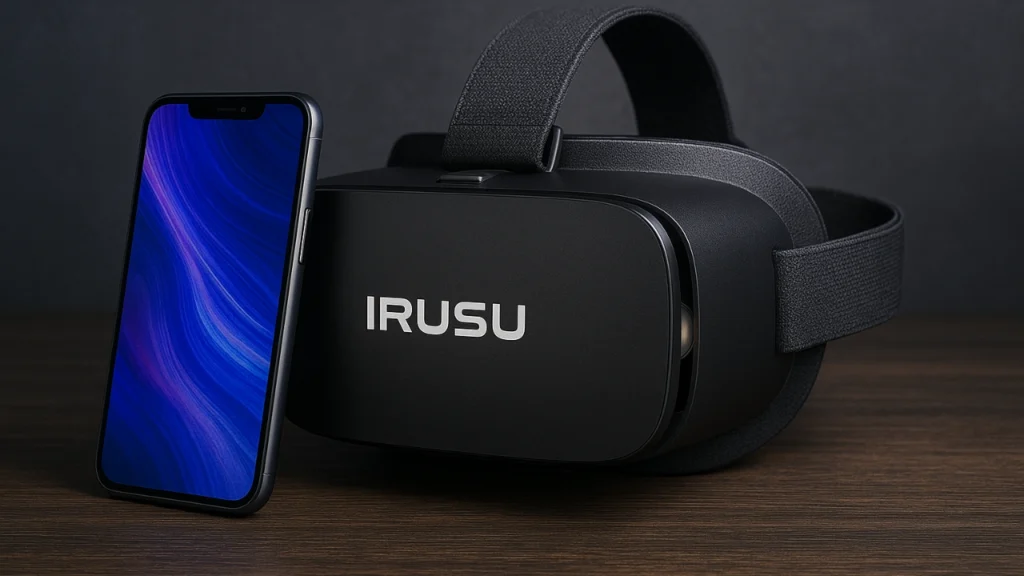
Irusu VR App vs. Irusu VR Headsets
Many beginners think the Irusu VR App is the headset itself, but it’s actually two separate components that work together.
1. Irusu VR App | Software
This app handles:
- VR playback
- Screen splitting
- Lens calibration
- 360° navigation
- VR environment interface
- Controller support
- Immersive media display
2. Irusu VR Headset | Hardware
This is the physical device with:
- Lenses
- Smartphone mount
- Face padding
- Head straps
- Focus/IPD adjustment
The headset gives you the optical effects, while the Irusu VR App processes the visuals, sensors, and VR interface.
Technology Behind Irusu VR App
The Irusu VR App is built around the same core frameworks that power Google Cardboard-compatible apps. It uses:
1. Gyroscope & Accelerometer
Your phone’s sensors detect:
- Rotation
- Orientation
- Direction
- Movement
This allows you to look around inside videos and VR environments naturally.
2. Screen Splitting for VR Mode
The app creates a stereoscopic split-screen that simulates depth perception, making VR feel three-dimensional.
3. Lens Distortion Correction
The Irusu VR App automatically adjusts the visual output based on lens type to prevent:
- Warping
- Distortion
- Blurring
- Eye strain
4. QR Code Calibration
Every Irusu headset has a unique QR code. Scanning it tells the app:
- Field of view (FOV)
- Distortion profile
- Lens spacing
- Aspheric lens correction
5. VR Interface for Fast Navigation
The app uses a floating UI designed for VR so that you can:
- Select videos
- Adjust playback
- Switch modes
- Calibrate center
- Control settings
All without removing your headset.
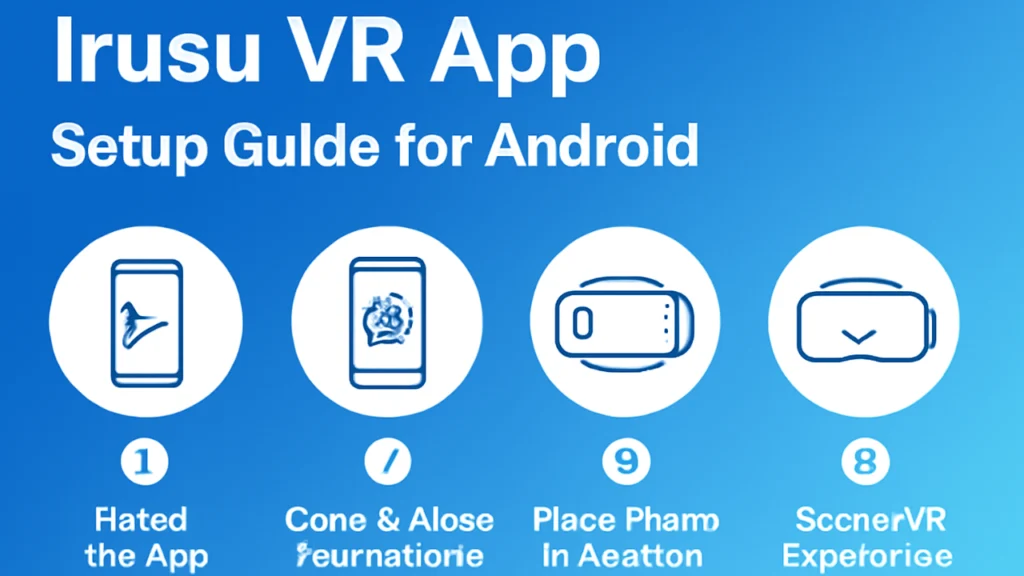
The Complete Irusu VR App Setup Process Android Guide
Step 1: Check Your Smartphone Compatibility
Not every phone delivers smooth VR. To run the Irusu VR App properly, make sure your phone has:
✔ Gyroscope sensor (essential for 360° movement)
✔ Accelerometer (for motion tracking)
✔ Android 8.0 – Android 14
✔ 4.7 to 6.7-inch display
✔ Full HD or higher resolution
✔ Stable battery temperature
✔ Good brightness levels
If your phone lacks a gyroscope, the experience will feel static and non-interactive.
Step 2: Downloading the Irusu VR App
You can download the app easily from the Google Play Store:
- Open Play Store
- Search: “Irusu VR App”
- Tap Install
- Grant permissions such as:
- Storage access
- Motion sensors
- File access
Once installed, the app will automatically scan for media files and supported formats.
Step 3: Pairing and Calibration
Smooth calibration is the MOST important part of VR. Without it, you’ll experience blur, eye strain, and distortion.
1. Scan Your Headset’s QR Code
You’ll find it:
- On the packaging
- Inside the headset
- In the manual
This sets perfect lens data for:
- IPD
- FOV
- Distortion curves
2. Align the Phone Properly
Centre your phone so the split screen matches the lens centre.
3. Adjust IPD & Focus
Use the headset knobs to:
- Move lenses left/right
- Adjust focal distance
- Increase clarity
4. Pair the Irusu VR Remote Controller
If you have the official controller:
- Turn on Bluetooth
- Pair the controller
- Test buttons inside VR
This helps you control movies, games, and menus without removing the headset.
Compatible VR Apps with Irusu
Irusu VR App works beautifully with dozens of VR apps. Here are the best ones sorted by category.
For Exploration: 360° Travel & VR Tours
Top apps:
- YouTube VR 360°
- Within VR
- Sites in VR
- Expeditions-style 360° tours
These let you explore:
- Paris
- The Himalayas
- Space stations
- Ocean life
- Famous museums
The Irusu VR App handles head tracking with impressive accuracy.
For Creators: Using the App for 3D/360° Videos
If you create immersive content, this app supports:
- SBS 3D videos
- 360° MP4/MKV
- VR180 videos
- Local stored VR content
The Irusu VR Player lets creators test their footage exactly as users will see it.
For Entertainment: Watching VR Movies & VR YouTube Content
The Irusu VR Cinema App transforms your room into a home theatre.
Supported content:
- SBS 3D movies
- VR web movies
- VR YouTube channels
- Anime VR
- Sports replays
- VR concerts
You can adjust:
- Screen size
- Cinema environments
- Viewing distance
Best Free VR Games for Irusu Devices
Irusu supports many Cardboard-compatible games:
- VR Roller Coaster
- VR Zombie Shooter
- VR X-Racer
- House of Terror VR
- VR Space Shooter
- Adventure horror VR
- Space exploration simulators
All games that support look-and-stop or Bluetooth controller navigation work smoothly with Irusu devices.
Pro Tips for an Optimal Irusu VR App Experience
Reducing Motion Sickness for Beginners
- Start with short 5–10 minute sessions.
- Keep brightness above 60%
- Avoid shaky VR videos.
- Keep the headset straps tight.
- Sit down instead of standing.
Motion sickness reduces dramatically after a few sessions.
Cleaning & Maintaining Your Irusu VR Headset
To protect your lenses and device:
- Clean lenses with a microfiber cloth
- Do NOT use alcohol on lenses.
- Keep the headset away from sunlight.
- Store in a dust-free case
- Wipe the face cushion regularly.
Understanding the Irusu VR Remote Controller
The remote lets you:
- Select videos
- Adjust playback
- Navigate menus
- Control VR games
- Turn pages in VR apps.
It’s especially helpful for games requiring movement.
Conclusion
Absolutely, the Irusu VR App remains a powerful entry point into virtual reality for beginners and budget-conscious users. With support for 360° videos, VR movies, SBS 3D films, and tons of VR-compatible apps, it delivers a rich immersive world at a very low cost.
If you’re looking for:
✔ Affordable VR
✔ Easy setup
✔ Smartphone-based VR
✔ High compatibility
✔ Good playback features
Then the Irusu VR App is still one of the BEST choices for the future.
Download it, calibrate your headset, and start exploring your VR world today.
FAQs
1. What is the Irusu VR App used for?
The Irusu VR App lets you play 360° videos, SBS 3D movies, VR YouTube content, and immersive VR media on Irusu headsets. It works as a complete VR player for Android users.
2. Is the Irusu VR App free to use?
Yes, the app is free to download from the Google Play Store. Some third-party VR apps it supports may have premium features.
3. Do I need an Irusu headset to use the Irusu VR App?
No, you can use any Google Cardboard–compatible VR headset. However, Irusu headsets offer better calibration and lens alignment because the app is optimised for them.
4. Can the Irusu VR App play normal videos?
Yes, it supports regular MP4 and MKV files, but for the best experience, use SBS 3D or 360° video formats.
5. Why is my video blurry in the Irusu VR App?
Blurriness usually happens due to:
- Incorrect phone alignment
- Wrong IPD setting
- Wrong QR profile
- Low-resolution video
Recalibrate using your headset’s QR code for best clarity.
6. Does the Irusu VR App work on iPhone?
No, the Irusu VR App is currently available only for Android devices.
7. Why is the screen drifting during VR playback?
Screen drifting happens when the gyroscope is unstable. Try:
- Restarting the phone
- Recalibrating sensors
- Updating the app
- Keeping the phone cool while using VR
8. Does the Irusu VR App support VR gaming?
Yes, it supports many Cardboard-based VR games and works smoothly with the Irusu Bluetooth remote controller.
9. Can I use YouTube VR with the Irusu VR App?
Yes, simply copy YouTube 360° links or play videos through the VR interface. Many Irusu users enjoy VR movies and concerts directly from YouTube.
10. What phones are compatible with the Irusu VR App?
Any Android smartphone with a gyroscope, accelerometer, and a 4.7–6.7-inch screen is compatible.