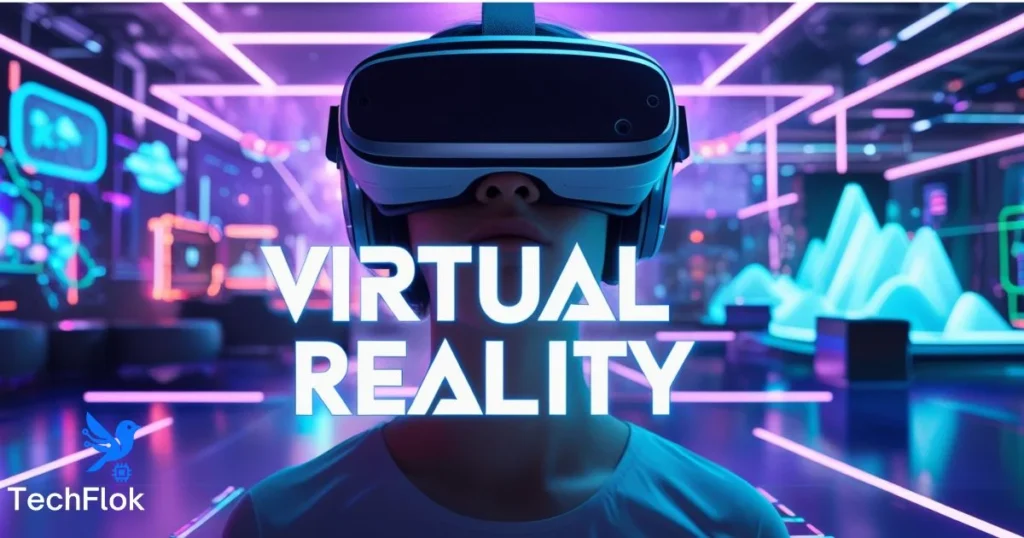
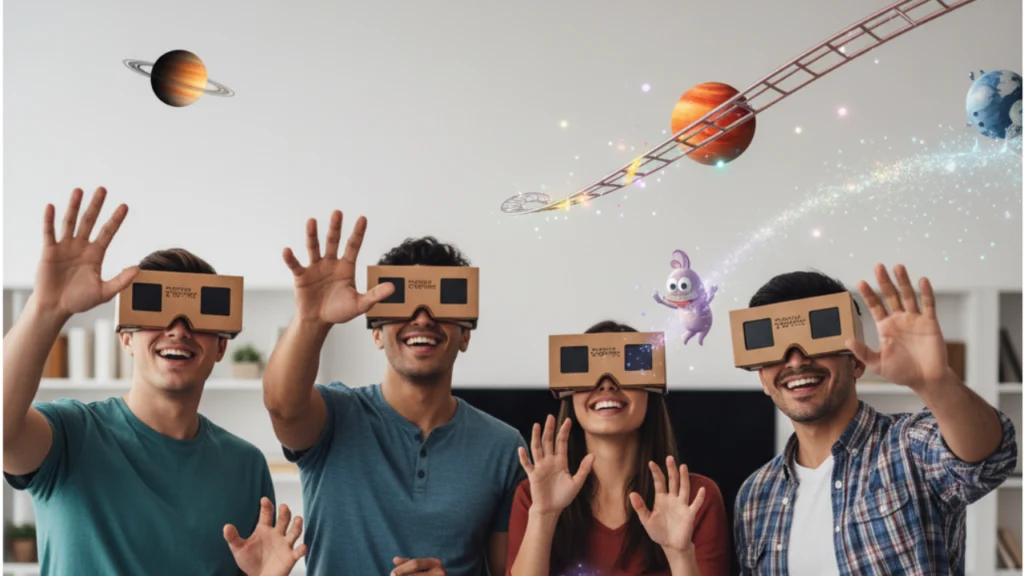
Google Cardboard is one of the simplest and most affordable ways to experience Virtual Reality using just your smartphone. Designed for beginners, Cardboard turns an ordinary device into a VR viewer capable of showing immersive 3D scenes, 360-degree videos, and interactive apps.
When Google first introduced Google Cardboard, it felt like magic. It promised to democratize Virtual Reality (VR) by turning a cheap piece of corrugated cardboard and two biconvex lenses into a personal IMAX theater.
Google launched it back in 2014. The goal was simple. Make VR available to everyone. Not just people who could afford expensive headsets.
In 2026, it still works. And it still costs almost nothing.
How Does Google Cardboard Work?
Your phone screen splits into two images. One image for each eye. The two lenses inside the viewer bend those images. Your brain combines them into one 3D picture.
At the same time, your phone tracks your head movement. It uses a tiny sensor called a gyroscope. When you turn your head left, the virtual world turns left too.
This gives you a basic but real VR experience.
What Is 3DoF?
Google Cardboard gives you 3 Degrees of Freedom (3DoF). This means you can look in all directions. Up, down, left, right.
But you cannot walk forward or lean in. That requires more advanced hardware.
For beginners, 3DoF is more than enough to enjoy VR content.
Is Google Cardboard Still Supported in 2026?
This is the most common question people ask.
Google officially stopped selling Cardboard years ago. They also closed the official SDK.
But they did something smart before stopping. They open-sourced the entire project.
Independent developers took over. Third-party companies still make Cardboard viewers based on the original design. The community keeps it alive.
In 2026, Google Cardboard works. It just does not come from Google anymore.
Is Google Cardboard Dead?
Not at all.
It is no longer a consumer product from Google. But it still runs on millions of phones. Thousands of apps still support it. Schools use it in classrooms every day.
Think of it like a bicycle. Old design. Still useful. Still works.
Google Cardboard Requirements: What Phone Do You Need?
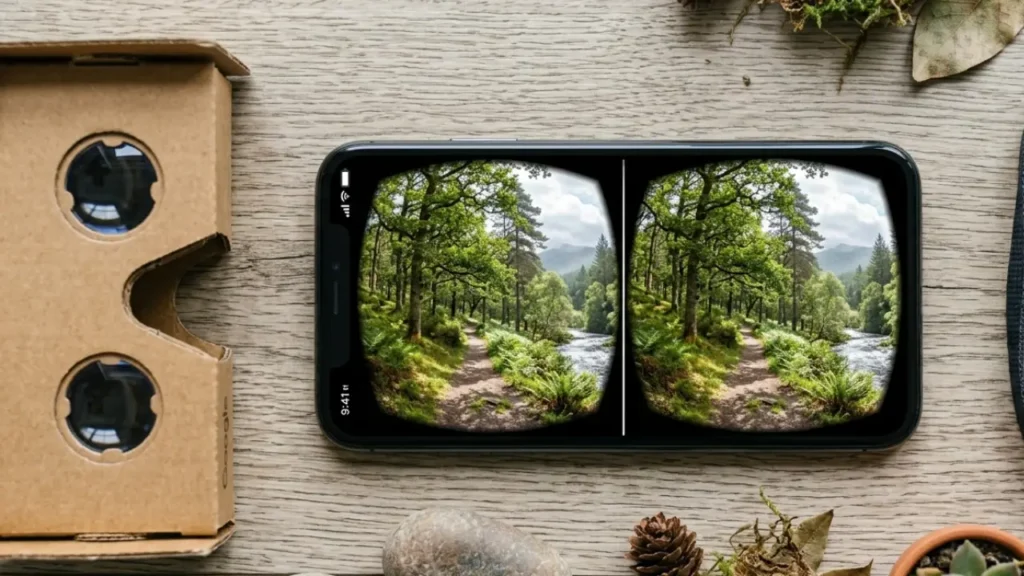
Not every phone works with Cardboard. Check these things before you buy a viewer.
Screen Size
Your phone screen should be between 4.5 and 6.5 inches.
Too small, and the image looks cramped. Too large and it will not fit in the viewer.
Gyroscope Sensor
This is the most important requirement. Your phone must have a gyroscope.
Without it, head tracking does not work. The VR experience will feel broken and static.
To check if your phone has one, go to the Google Play Store. Search for “Gyroscope test.” Install any free sensor app. Run the test.
If your phone passes, you are ready.
Operating System
Your phone needs Android 7.0 or higher. For iPhone users, you need iOS 13 or higher.
Screen Resolution
Higher resolution gives a sharper picture. A 1080p screen works well. Anything above that looks even better.
The Two Parts of Google Cardboard
Many people get confused about this. Cardboard has two separate parts.
1. The Physical Viewer
This is the headset itself. It is usually made from cardboard or plastic.
Inside, it has two biconvex lenses, a slot for your phone, a button or magnetic switch, and Velcro strips to hold everything in place.
You can buy one online for $5 to $30. Many schools order them in bulk for very little money.
2. The Cardboard App
This is the software side. The official Cardboard app runs on Android and iOS.
It helps you set up your headset, calibrate the viewer, explore VR demos, and access compatible content.
Both parts work together. The viewer gives you the hardware. The app gives you the content.
How to Set Up Google Cardboard: Step-by-Step Guide
Setting up Cardboard takes under 10 minutes. Follow these steps.
Step 1: Check Your Phone
Make sure your phone meets the requirements above. Test the gyroscope first. This saves time later.
Step 2: Download the Cardboard App
Open the Google Play Store or Apple App Store. Search for “Cardboard” by Google LLC. Install it. Open it.
Step 3: Scan the QR Code
Every certified Cardboard viewer has a unique QR code printed on it.
This code tells the app about your specific viewer. It adjusts the lens shape, the field of view, the screen alignment, and distortion correction.
Open the app. Tap Settings. Tap Pair New Viewer. Scan the QR code. Wait for confirmation.
Without this step, the image may look blurry or misaligned.
Step 4: Insert Your Phone
Slide your phone into the viewer. Make sure it sits centered. Lock the flap.
Step 5: Start Exploring
Open any Cardboard-compatible app. Put the viewer up to your eyes. Look around.
You are now inside a virtual world.
Best Google Cardboard Apps in 2026
The app ecosystem is still active. Here are the top categories and apps to try.
Virtual Tours and Travel
Google Street View is the best free option. It has a built-in VR mode made for Cardboard.
You can visit the Eiffel Tower in Paris, the Egyptian Pyramids, the Taj Mahal in India, and the Grand Canyon in the USA.
Great for students, geography lovers, and curious travellers.
360-Degree Videos on YouTube
YouTube has thousands of 360-degree VR videos. They are completely free.
Popular topics include roller coasters, space exploration, wildlife and nature, and concerts and live events.
Open YouTube. Search “360 video.” Tap the VR icon. Insert your phone into the viewer. Done.
Cardboard Camera App
This app lets you take your own 360-degree photos. It also captures sound.
You can photograph a family moment in 360 degrees, relive a travel memory in VR, and share immersive photos with friends.
Great for people who want to create their own VR content.
Free VR Games for Beginners
These free games work well on Cardboard:
VR Roller Coaster is a classic beginner experience. Dark Walls VR is a simple horror game. Hidden Temple VR Adventure lets you explore ancient ruins. Guardian VR puts you in a space defense game. VR X-Racer sends you flying through rings at high speed.
Each game teaches you the basics of head tracking and VR controls.
Google Cardboard vs Meta Quest: Which One Is Right for You?
This is the most important comparison for 2026.
| Feature | Google Cardboard | Meta Quest 3 |
| Price | $5 to $30 | $499 and above |
| Setup time | 5 minutes | 20 or more minutes |
| Requires phone | Yes | No |
| Hand tracking | No | Yes |
| Standalone | No | Yes |
| Best for | Beginners, schools, travel | Gaming, professionals |
Choose Cardboard if you want to try VR for the first time without spending money. It teaches you the basics well.
Choose Meta Quest if you want a full VR gaming experience with proper controls and content.
Most beginners start with Cardboard. Many then upgrade to standalone VR headsets later.
Common Google Cardboard Problems and Fixes
Things go wrong sometimes. Here are the most common issues and how to fix them.
Problem: The Image Looks Blurry
Clean the lenses with a microfiber cloth. Fingerprints blur the image badly.
Rescan the QR code. Wrong calibration causes blurry images.
Check that your phone screen resolution is at least 1080p.
Problem: Head Tracking Is Not Working
Your phone may not have a gyroscope. Run the gyroscope test from Google Play. If it fails, the phone is not compatible with Cardboard.
Problem: Motion Sickness
Many beginners feel dizzy. This is normal.
Take breaks every 5 to 7 minutes. Always sit down while using Cardboard. Do not stand or walk.
Start with slow-paced videos. Avoid fast-moving games at first. Keep your phone screen brightness high.
Your body adjusts within a few sessions.
Problem: The App Crashes or Freezes
Close background apps before launching VR content. VR needs a lot of RAM. Free up memory first.
Problem: Screen Does Not Fit in the Viewer
Measure your phone screen. It must be between 4.5 and 6.5 inches. Phones outside this range will not fit or will look wrong.
Best Google Cardboard Headsets to Buy in 2026
You do not need to buy from Google. Many third-party viewers work perfectly.
Here are the best options at different price points.
Budget Option Under $10
Basic cardboard viewers are available on Amazon and AliExpress. They get the job done for first-time users. Not very durable, but cheap enough to replace.
Mid-Range Option $10 to $25
Plastic viewers are more durable. They have better padding for your face. The lenses are usually sharper, too. Good choice for regular use.
Classroom Option for Bulk Orders
Many companies sell Cardboard-compatible viewers in packs of 30 or more. Schools get good discounts. Look for “VR viewer bulk educational” on Google.
How to Use Google Cardboard in the Classroom
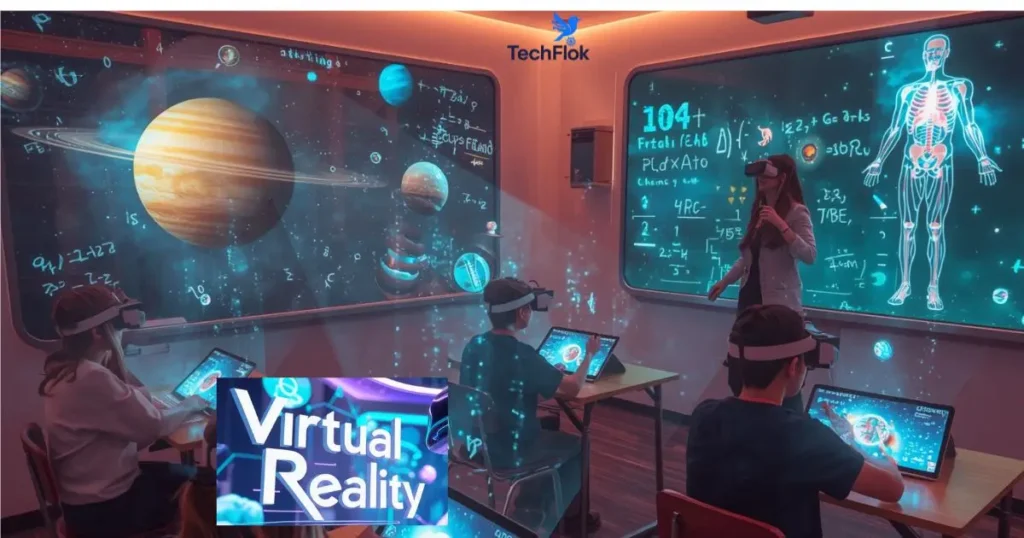
Teachers use Cardboard to bring lessons to life. This is one of its best uses in 2026.
For Geography, students visit countries and landmarks virtually. They can explore the Amazon rainforest or the Great Wall of China.
For History, students walk through ancient ruins and see historical sites in 360 degrees.
For Science, students watch 360-degree videos of space, cells, or ecosystems.
For Art, students take virtual museum tours and visit the Louvre or the Met.
The setup is simple. Every student needs a phone and a $10 viewer. Total classroom cost stays very low.
Google Expeditions content is still available through various apps even after Google ended the official program.
Tips for a Better Google Cardboard Experience
Small changes make a big difference.
Clean the Lenses Regularly
Use only a microfiber cloth. Other materials scratch the lenses. Even small scratches can severely blur your VR image.
Use Gaze Control
Most Cardboard apps support gaze control. You select things by looking at them for a few seconds.
This works better than trying to reach the button on the viewer’s side.
Charge Your Phone First
VR drains battery fast. A full charge lasts about 45 to 60 minutes of VR use. Always start with a fully charged phone.
Use a Phone Case or Grip
Some viewers hold the phone loosely. A slim phone case can improve the fit and keep the phone centered.
Take Regular Breaks
VR is intense on your eyes and brain. Rest for 10 minutes after every 20 minutes of use. This prevents eye strain and headaches.
Google Cardboard for Kids: Is It Safe?
Google recommends Cardboard for users aged 13 and above. The main reason is eye development. Young eyes are still developing. Extended VR use may cause strain.
For younger children, limit sessions to 5 minutes maximum. Always supervise use. Choose slow-moving content only. Watch for signs of discomfort or dizziness.
Used carefully, Cardboard is a fun and educational tool even for younger users with parental guidance.
Does Google Cardboard Need Wi-Fi?
Most apps need an internet connection to download content. Streaming 360-degree videos requires Wi-Fi or mobile data.
But many apps work offline after the initial download. Downloaded games and VR scenes play without any internet connection.
For classroom use, download all content before the lesson. This avoids Wi-Fi dependency during class.
Google Cardboard for Architecture and Design
Professionals also use Cardboard for quick VR previews.
Architects use 360-degree renders of buildings and show them to clients through Cardboard. The client puts on the viewer and walks through the virtual building.
This costs almost nothing compared to expensive VR setups. For early-stage client presentations, it works very well.
Apps like Kubity and Mindesk allow architects to export 3D models as Cardboard-compatible VR files.
Conclusion
Cardboard is not the future of VR. Standalone headsets like Meta Quest have moved far beyond it in terms of power and immersion.
But Cardboard still has a clear job. It makes virtual reality technology accessible to everyone.
A student in a rural school. A teacher with no budget. A traveller who wants to preview a destination. A first-time VR user who does not want to spend $500 on a headset.
For all of these people, Google Cardboard is the perfect starting point.
It costs almost nothing. It works on the phone you already own. And it still delivers a genuine VR experience that surprises first-time users every single time.
Start with Cardboard. See if you love VR. Then decide if you want to upgrade.
Frequently Asked Questions About Google Cardboard
1. What is Google Cardboard used for?
Google Cardboard turns your smartphone into a basic VR viewer. You can watch 360-degree videos, explore virtual tours and travel experiences, play simple VR games, and view immersive educational content.
2. Is Google Cardboard dead in 2026?
No. Google stopped selling it, but the project is open-source. Third-party companies still make viewers. Thousands of apps still support it. Schools still use it daily.
3. Is Google Cardboard still worth it in 2026?
Yes. It remains the cheapest way to try VR. For beginners, students, and teachers, it offers real VR experiences at almost no cost.
4. Does Google Cardboard work with an iPhone?
Yes. It works with most iPhones running iOS 13 or higher. Your iPhone needs a gyroscope. All iPhones from the iPhone 5S onwards have one.
5. How do I set up Google Cardboard on my phone?
Download the Cardboard app. Open it. Scan the QR code on your viewer. Insert your phone. Start exploring VR content.
6. What apps work with Google Cardboard?
Popular options include YouTube VR, Google Street View, Cardboard Camera, and many free games from the Play Store. Search “Cardboard compatible” to find more.
7. Why do I need the QR code for setup?
The QR code calibrates your viewer. It adjusts lens shape, field of view, and screen alignment for your specific headset. Without it, the image looks blurry.
8. Can Google Cardboard cause motion sickness?
Some beginners feel dizzy at first. Take short 5-minute sessions. Sit down while using it. Choose slow-moving content. The discomfort goes away after a few sessions.
9. Can I watch 360-degree YouTube videos with Cardboard?
Yes. Open YouTube and search “360 video.” Tap the VR icon on any 360-degree video. Insert your phone into the viewer and enjoy.
10. Do I need Wi-Fi to use Google Cardboard?
Many apps need Wi-Fi to download content. But most VR experiences work offline once downloaded. For classrooms, download everything before the lesson.