
Virtual Reality (VR) technology has come a long way, offering immersive experiences for gaming, education, and more. However, one common issue that users face is the dreaded black screen on their VR headsets. This issue can be frustrating, as it disrupts your experience and leaves you wondering what went wrong.
In this article, we’ll explore the causes of the VR headset black screen issue and provide actionable steps to resolve it.
Understanding the VR Headset Black Screen Issue
Before diving into solutions, it’s important to understand why a black screen may appear on your VR headset. The black screen can occur for a variety of reasons, such as hardware malfunctions, connection issues, or software glitches. Identifying the root cause is crucial to effectively fixing the problem.
Common Causes of Black Screen on VR Headsets
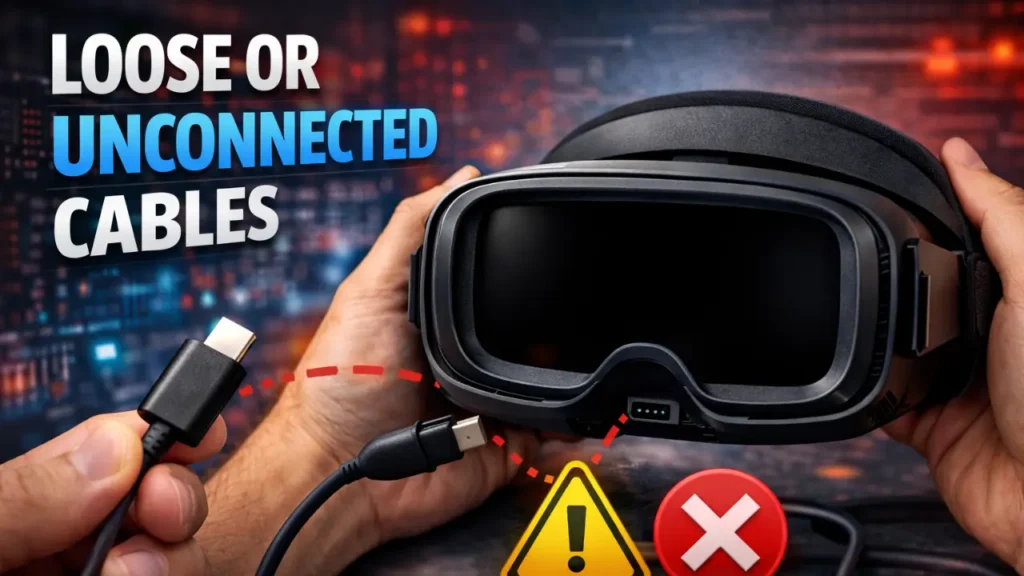
- Loose or Unconnected Cables: One of the most common causes is a loose or disconnected cable. If the cables are not securely connected to the headset or the PC/console, the display will fail to load properly.
- Power Supply Issues: Insufficient power or issues with the power source can cause the headset to display a black screen. This is particularly relevant for wireless VR headsets that rely on battery power.
- Outdated or Corrupt Drivers: VR headsets rely on specific drivers for communication with your device. If the drivers are outdated or corrupted, the headset may fail to function properly, resulting in the screen going black.
- Software Glitches or Bugs: Sometimes, software-related issues, such as VR app malfunctions or conflicts with other software, can cause the black screen problem.
- Overheating: If the VR headset gets too hot during extended use, it may automatically shut down to prevent damage, turning the screen black.
- Hardware Failures: In some cases, a black screen can result from internal hardware issues, such as a damaged display or a malfunctioning GPU.
How to Fix the VR Headset Black Screen Issue
Here’s a step-by-step guide to help you resolve the black screen issue and get back to enjoying your VR Experience.
1. Check and Secure the Cables
- Action: Ensure that all cables HDMI, USB, DisplayPort, etc are securely connected between your VR headset, PC, and any other devices. If you are using a wireless VR headset, ensure it is properly paired with the device.
- Why it’s Important: Loose or disconnected cables are the most common cause of the black screen issue. Ensuring proper connection will help establish communication between the headset and your device.
2. Inspect the Power Supply
- Action: Check whether the VR headset is charged, whether it is wireless, and whether the power supply is connected. If using a wired headset, try plugging the power cable into a different outlet.
- Why it’s Important: Insufficient power can cause the display to go black. A reliable power source ensures that the headset functions as intended.
3. Update VR Drivers
- Action: Ensure all drivers for your VR headset are up to date. Visit the manufacturer’s website to download the latest drivers, or use the software provided to check for updates.
- Why it’s Important: Outdated drivers can cause communication issues between your device and the VR headset. Keeping drivers updated ensures optimal performance.
4. Restart the VR and Device
- Action: Restart both your VR headset and the connected device PC, console, or smartphone. This can help clear up any temporary software issues causing the black screen.
- Why it’s Important: Sometimes, a simple reboot can resolve software glitches or bugs that prevent the VR headset from functioning properly.
5. Clear Software Conflicts
- Action: Close any unnecessary background applications on your computer or console that may conflict with the VR software. Also, ensure that the VR software is up to date.
- Why it’s Important: Software conflicts or outdated apps can degrade VR performance. Ensuring your software is up to date and running with minimal background processes improves system stability.
6. Allow the Headset to Cool Down
- Action: If you suspect the headset is overheating, allow it to cool down for a while before trying again. Ensure the area you are using the VR headset is well-ventilated.
- Why it’s Important: Overheating can cause the system to shut down automatically to prevent damage, leading to a black screen. Proper cooling can prevent this issue.
7. Test on a Different Device
- Action: If possible, try connecting the VR headset to a different device. This will help determine if the issue lies with the headset or the original device.
- Why it’s Important: Testing on a different device can help you isolate the issue, making it easier to determine whether it’s a hardware or software problem.
8. Check for Hardware Issues
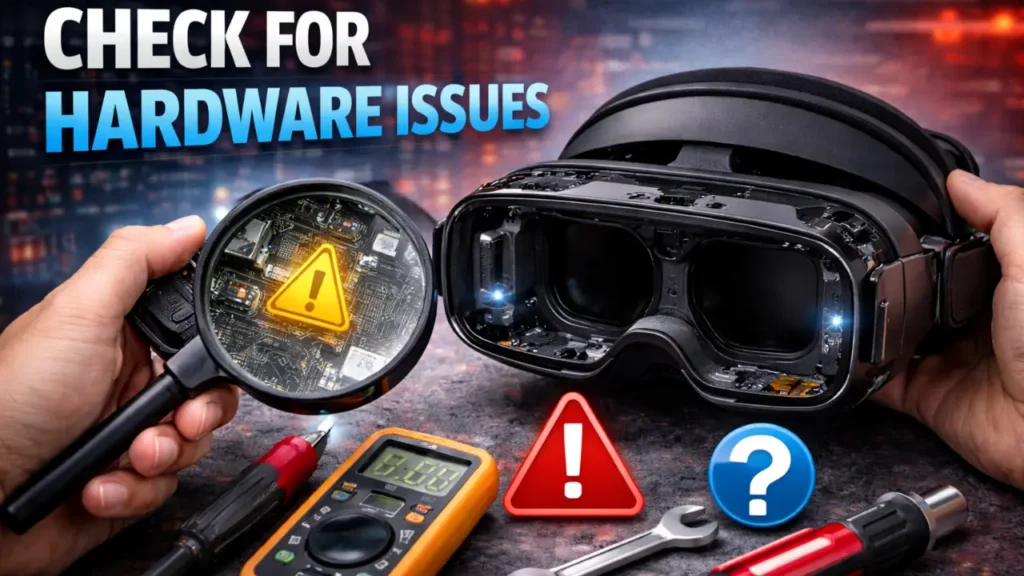
- Action: If all else fails, it might be time to check for hardware issues. This could involve inspecting the cables, connectors, and even the headset’s internal components.
- Why it’s Important: If there’s a hardware malfunction, it could require repairs or replacement. Identifying hardware issues early can save you time and money in the long run.
Preventing Future Black Screen Issues
Once you’ve resolved the VR Headset Black Screen Issue, there are a few steps you can take to prevent the black screen problem from occurring again in the future:
- Regularly update your VR software and drivers to ensure compatibility with the latest system updates.
- Keep your headset and device in a cool, well-ventilated space to avoid overheating.
- Always ensure cables are properly secured, and periodically check for wear and tear.
- Follow the manufacturer’s maintenance guidelines to keep the headset in top working condition.
Conclusion
The VR headset black screen issue can be caused by a variety of factors, ranging from simple cable disconnections to complex software and hardware problems. By following the troubleshooting steps outlined above, you can quickly diagnose and resolve the issue, ensuring a seamless and enjoyable VR experience. Remember, your content should always be credible for Google and valuable for users. By providing accurate, detailed solutions to common problems like the VR headset black screen, you offer both practical advice and a better overall experience for your readers.
By keeping these principles in mind, you can ensure your VR content is informative, useful, and SEO-friendly, meeting both user needs and search engine guidelines.
FAQs
How to fix a stuck black screen?
- A stuck black screen can often be fixed by restarting your device, checking cable connections, or performing a soft reset. If it persists, try booting into safe mode or updating your drivers.
Why is my VR headset not showing an image?
- This issue could be due to loose or disconnected cables, outdated drivers, insufficient power, or a software glitch. Ensure all connections are secure and that the headset is up to date.
Is the black screen of death fixable?
- Yes, the black screen of death (BSOD) can be fixed by troubleshooting hardware and software issues. Common fixes include restarting the system, checking connections, updating drivers, or performing a system restore.
How to fix a black loading screen?
- To fix a black loading screen, try restarting your device, clearing the cache, or updating the software. You may also want to check for any app or system conflicts.
Why is my screen suddenly black?
- A sudden black screen could be due to a power failure, overheating, loose cables, or a system crash. Check for these issues and restart your device to see if the screen returns.
Can faulty RAM cause a black screen?
- Yes, faulty RAM can cause a black screen if it prevents the system from properly loading the operating system. If suspecting faulty RAM, test with known good modules or run a memory diagnostic tool.
How to fix a black screen with a loading cursor?
- To fix a black screen with a loading cursor, restart the device, check for hardware issues, or boot into safe mode. If the issue persists, check for software conflicts or run a System File Checker.