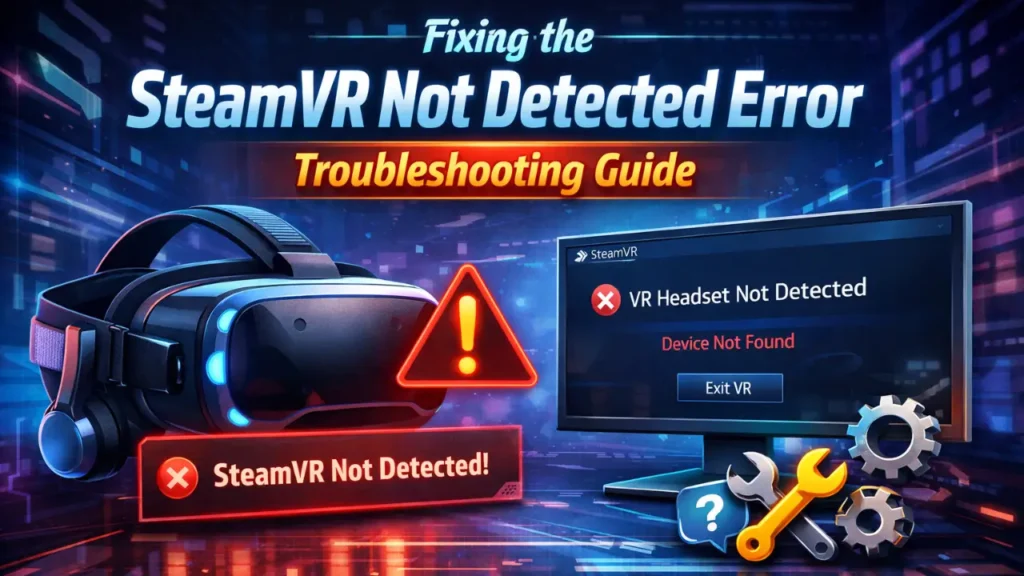
The SteamVR Not Detected Error occurs when your PC cannot recognize your VR headset in SteamVR, preventing you from starting virtual reality games or experiences. If you’re an avid gamer who loves exploring the immersive world of virtual reality (VR), you’ve probably come across the SteamVR Not Detected Error at some point. This error can be frustrating, as it hinders your ability to use your VR headset. Don’t worry; this article will help you understand the possible causes and offer simple yet effective solutions to fix it.
Introduction to SteamVR and the Not Detected Error
SteamVR is a popular software developed by Valve that enables users to play VR games on platforms such as the HTC Vive, Oculus Rift, and other VR headsets. However, like any software, SteamVR isn’t immune to errors. One of the most common errors is the SteamVR Not Detected Error, which prevents your VR headset from connecting to SteamVR.
When this error occurs, SteamVR cannot detect your VR headset or controllers, preventing you from starting any VR applications. The issue can stem from a variety of causes, including hardware problems and software issues.
In this article, we will discuss the causes of this error and offer step-by-step solutions that will help you get back to your VR gaming experience as soon as possible.
Common Causes of SteamVR Not Detected Error
There are several reasons why you might encounter the SteamVR Not Detected Error
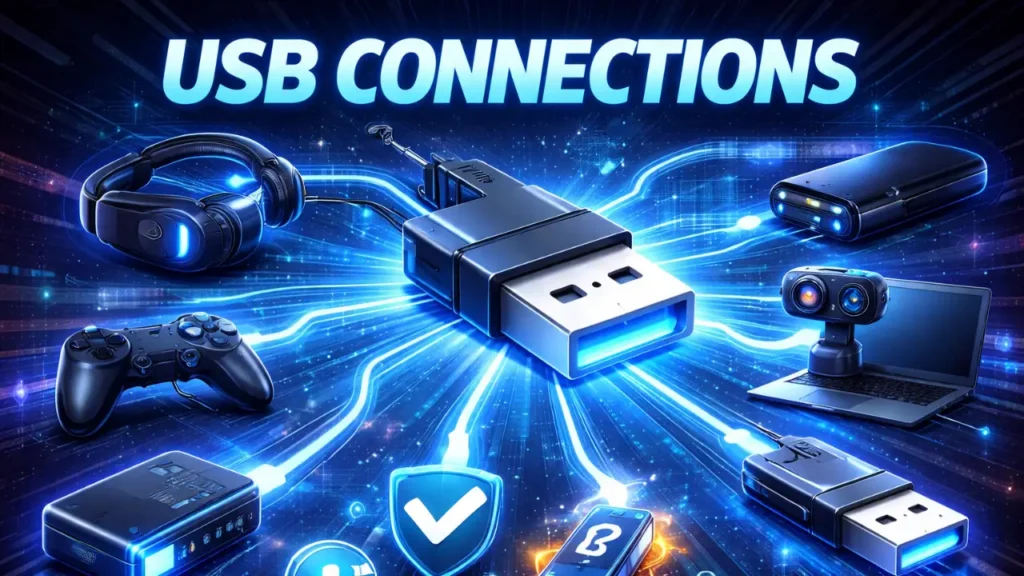
- USB Connection Issues
One of the most common causes of this error is a faulty USB connection. If your VR headset or controllers are not connected properly to the USB ports on your PC, SteamVR will fail to detect them. This can happen if the USB cable is loose, damaged, or plugged into the wrong port. - Outdated Drivers
Another culprit could be outdated or incompatible drivers for your VR headset or GPU. SteamVR relies on these drivers to communicate with your hardware, and if they are outdated, you may encounter connection issues. - SteamVR or Hardware Conflicts
Sometimes, the error is due to a conflict between SteamVR and your hardware. For example, certain software applications might interfere with SteamVR’s ability to detect your headset. Similarly, if multiple VR platforms or devices are installed on your PC, they could cause conflicts. - VR Headset Not Properly Set Up
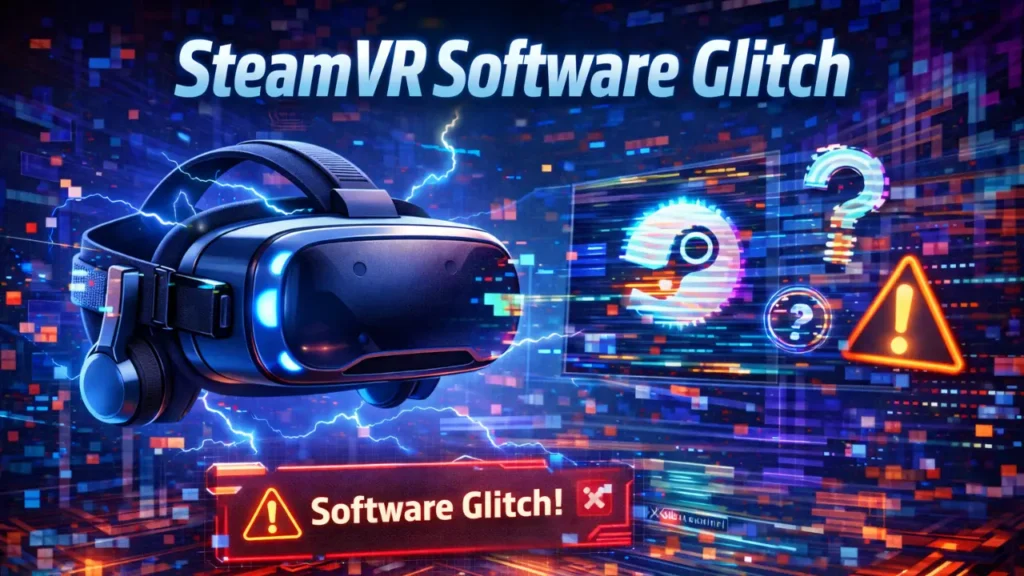
If your VR headset is not properly set up or calibrated, it may fail to be recognized by SteamVR. This can include issues such as incorrect display settings or failure to connect the headset to the correct input. - SteamVR Software Glitch
SteamVR may also encounter glitches or bugs that prevent it from detecting your headset. These glitches are often due to corrupt files, software crashes, or system conflicts.
How to Fix the SteamVR Not Detected Error
Now that you understand some of the common causes of the SteamVR Not Detected Error, let’s dive into the solutions. These methods have been carefully curated to cover all possible scenarios.
- Check Your USB Connections
- Ensure that your headset is securely connected: Check all cables to make sure they are properly plugged into the correct USB ports on your PC.
- Try different USB ports: If your headset isn’t detected in one port, try another, preferably a USB 3.0 port for faster data transfer.
- Use high-quality cables: If your cables are old or damaged, they might not transmit the required signals properly, so consider replacing them.
- Update Drivers
- Update your graphics drivers: Ensure your GPU drivers (NVIDIA or AMD) are up to date. You can update them through the manufacturer’s website or using a driver updater tool.
- Update SteamVR drivers: Open the Steam app, go to SteamVR settings, and ensure you have the latest version of SteamVR installed.
- Check for VR hardware updates: Headsets like HTC Vive or Oculus Rift require regular firmware updates. Check the official support pages for your headset and make sure it’s running the latest firmware.
- Restart SteamVR and Your PC
Sometimes a simple restart can solve the issue. Close SteamVR, restart your PC, and then relaunch SteamVR. This can clear any temporary issues or bugs that may be causing the SteamVR Not Detected Error. - Reinstall SteamVR
If restarting doesn’t fix the problem, you can try reinstalling SteamVR:- Uninstall SteamVR: Go to Steam, right-click on SteamVR in your Library, and select Manage > Uninstall.
- Reinstall SteamVR: Go to the Steam store, search for SteamVR, and reinstall it.
- Check for Software Conflicts
Close any other software that might interfere with SteamVR. These include other VR platforms or resource-intensive applications running in the background.- Check for background processes: Open the Task Manager (Ctrl+Shift+Esc) and check for any processes that might be consuming a lot of CPU or memory. If you notice anything unusual, end those tasks and restart SteamVR.
- Set Up Your VR Headset Correctly
Ensure that you follow the manufacturer’s instructions when setting up your VR headset.- Position the sensors correctly: If you’re using a system like HTC Vive, make sure the sensors are properly placed and pointed towards the play area.
- Recalibrate the VR setup: Follow the on-screen instructions in SteamVR to calibrate your headset and controllers.
- Use SteamVR Beta (Optional)
If you’re encountering persistent issues, you can opt into the SteamVR Beta, which may have fixes for any unresolved bugs. To do this:- Right-click on SteamVR in your Library.
- Go to Properties > Betas.
- Select beta from the dropdown list and update SteamVR.
Conclusion
The SteamVR Not Detected Error can be frustrating, but with the steps outlined in this article, you should be able to resolve the issue and get back to enjoying your virtual reality experience. Whether the problem lies with hardware connections, outdated drivers, or SteamVR software conflicts, the solutions provided here cover all possible causes.
If you’ve tried all of the above solutions and the error persists, it may be worth contacting Steam Support or the manufacturer of your VR headset for more personalized troubleshooting.
By following the outlined steps, you ensure that your SteamVR setup is credible with Google and valuable to users, enabling an optimal VR experience.
FAQs
How to fix the SteamVR headset not detected error ?
- Ensure all cables are securely connected, update SteamVR and headset drivers, and restart both your PC and SteamVR. If the issue persists, check for power issues or test the headset on another device.
Why is Steam not detecting my headset?
- Steam may not detect your headset due to loose connections, outdated drivers, or software conflicts. Ensure the headset is properly connected and both SteamVR and the headset drivers are up to date.
How to fix SteamVR not launching?
- Try restarting SteamVR and your PC, check for software updates, and ensure your system meets the minimum VR requirements. If the problem persists, reinstall SteamVR or run it in compatibility mode.
How to repair SteamVR?
- To repair SteamVR, go to Steam’s settings, choose “Properties” for SteamVR, and use the “Verify Integrity of Tool Files” option. You can also reinstall SteamVR to fix any corrupted files.
How to reset SteamVR?
- To reset SteamVR, open SteamVR, go to “Settings,” and choose “Developer” > “Reset Seated Position” or “Remove All SteamVR Data” for a complete reset.
How to repair Steam on PC?
- Repair Steam by navigating to “Control Panel” > “Programs” > “Uninstall a Program,” selecting Steam, and choosing “Repair.” Alternatively, reinstalling Steam will also resolve issues caused by corrupted files.