
The Oculus Quest 2 is one of the most popular standalone VR headsets, offering an immersive experience without a PC or external sensors. Quest 2 provides endless entertainment and opportunities for both casual users and serious gamers alike. With its sleek design, powerful performance, and ease of use, the Oculus Quest 2 has become a go-to device for anyone looking to dive into virtual reality. Whether you’re looking to resolve performance issues or get ready to sell it, knowing how to factory reset Oculus Quest 2 is a must.
Don’t worry, it’s a simple process, and we’ve got you covered with step-by-step instructions. Let’s walk you through exactly what you need to do to reset your Oculus Quest 2 and get it back to its original settings.
Table of Contents
- Why Factory Reset Your Oculus Quest 2?
- Prerequisites Before Factory Resetting
- Method 1: Factory Reset Using the Oculus App
- Method 2: Factory Reset Using the Headset
- Troubleshooting Post-Factory Reset
- FAQs
- Conclusion
Why Factory Reset Your Oculus Quest 2?
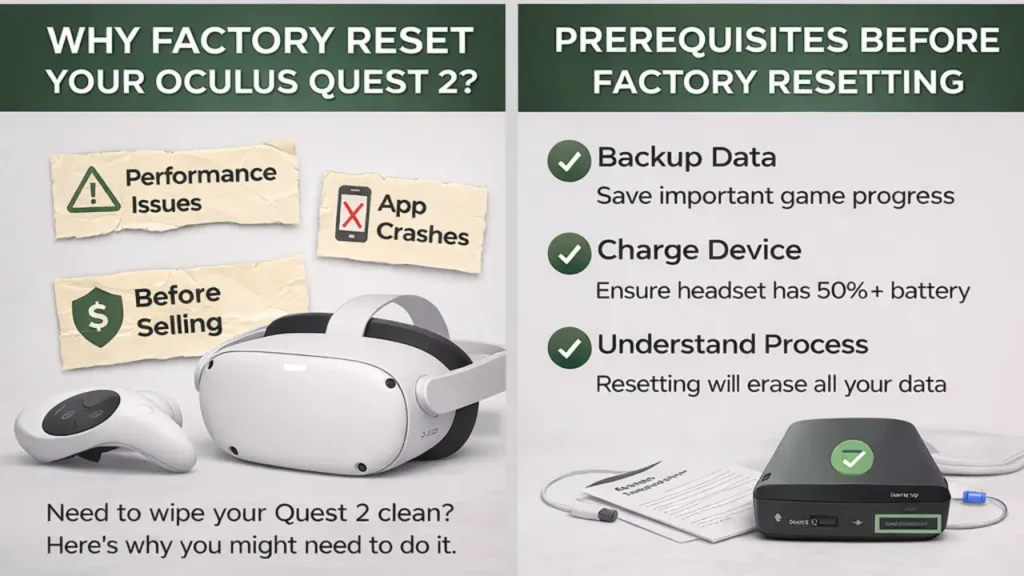
Factory resetting your Oculus Quest 2 can be a useful step for several reasons. Here are some common scenarios in which you may want to perform a reset:
- Performance Issues: If your Oculus Quest 2 is running slowly, experiencing lag, or encountering crashes, a factory reset can help restore the device to its original state, improving performance.
- App Crashes or Malfunctions: Sometimes, apps may not function as expected. A reset can help clear any corrupted data that might be causing these issues.
- Preparing to Sell or Give Away: If you’re planning to sell or pass along your Oculus Quest 2 to someone else, it’s essential to perform a factory reset to ensure all your personal data is erased from the device.
Important Consideration: Performing a factory reset will erase all data stored on your Oculus Quest 2, including apps, saved games, and personal settings. Make sure to back up any data you wish to keep.
2. Prerequisites Before Factory Resetting
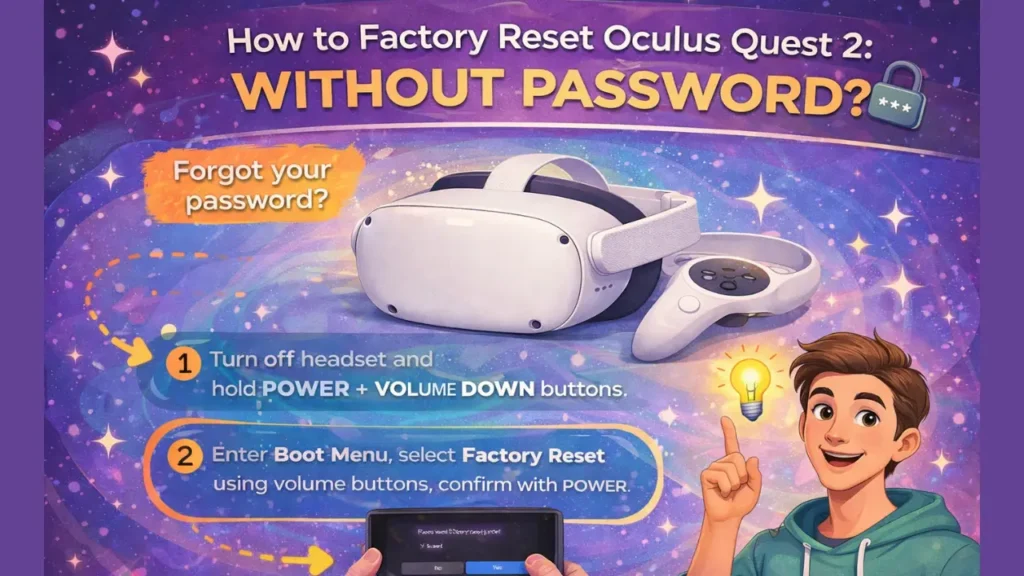
Before you proceed with a factory reset, there are a few steps and precautions you should take to ensure the process goes smoothly:
- Backup Your Data: Make sure to back up your games, settings, and other important data. While Oculus data is usually tied to your account, some saved games may be lost. If you have important files or app data, make sure it’s backed up before resetting.
- Charge Your Device: Ensure your Oculus Quest 2 is at least 50% charged to avoid interruptions during the reset process. If the device runs out of battery during the reset, it may cause issues.
- Understand the Process: A factory reset is irreversible. Once completed, all settings, apps, and data will be wiped from the device, and it will be restored to its state when first purchased.
3. Method 1: Factory Reset Using the Oculus App
This method is user-friendly and one of the easiest ways to reset your Oculus Quest 2. Follow these steps:
Step-by-Step Guide:
- Open the Oculus App: Launch the Oculus app on your smartphone. If you don’t have the app, download it from the App Store or Google Play.
- Select Your Device: Tap on the Devices tab at the bottom of the screen. Choose your Oculus Quest 2 device from the list of connected devices.
- Scroll Down to the Reset Option: Once your device is selected, scroll down to find the Factory Reset option under the Advanced Settings section.
- Initiate the Factory Reset: Tap on Factory Reset. A prompt will appear asking you to confirm your decision. Tap Reset to proceed.
- Wait for the Reset to Complete: The Oculus Quest 2 will begin the reset process. The headset will automatically restart, and the process may take a few minutes to complete.
- Augmented Reality | Discover the Exciting Future of Tech in 2026Post
4. Method 2: Factory Reset Using the Headset
If you don’t have access to the Oculus app or prefer to reset directly from the headset, follow these steps:
Step-by-Step Guide:
- Turn off the Oculus Quest 2: Ensure it is completely powered off. Press and hold the power button for 5 seconds until the device shuts down.
- Enter the Boot Menu: Press and hold both the volume down and power buttons simultaneously. Hold them until you see the boot menu appear on the headset screen.
- Select Factory Reset: Use the volume buttons to navigate through the boot menu. Select Factory Reset using the power button to confirm.
- Confirm the Reset: A confirmation screen will appear, prompting you to confirm that you want to reset the device. Use the volume buttons to select Yes, then press the power button to confirm.
- Wait for the Reset to Complete: The reset process will begin, and the device will restart. Once it’s done, your Oculus Quest 2 will return to its factory settings.
5. Troubleshooting Post-Factory Reset
After performing a factory reset, you may encounter some common issues. Here are some troubleshooting tips:
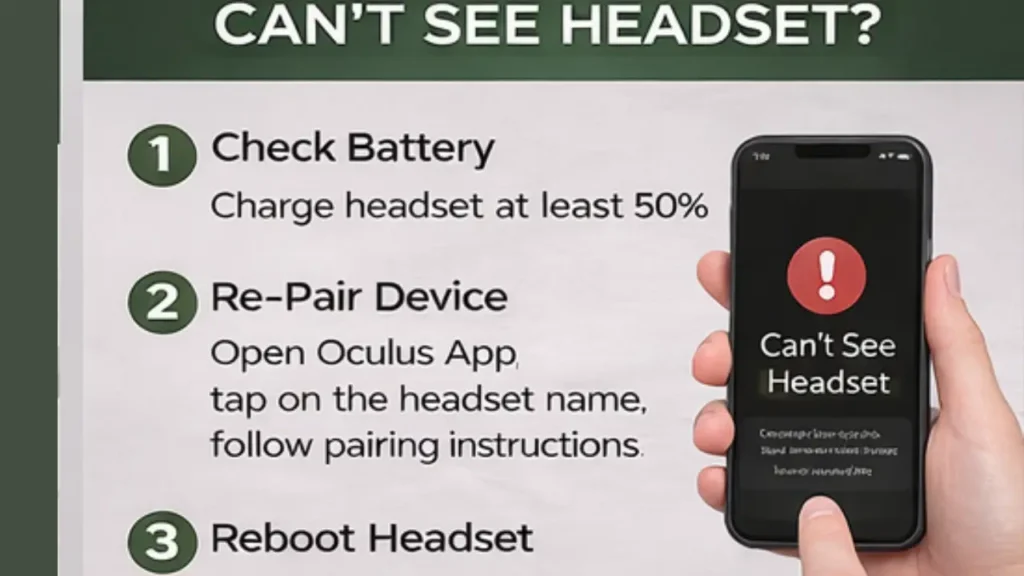
- Re-pairing Your Device: If your Oculus Quest 2 isn’t pairing with the Oculus app after the reset, open the app and follow the on-screen instructions to pair your headset again. Ensure both your headset and phone are connected to the internet.
- Device Stuck in Boot Loop: If your device gets stuck in a boot loop after the reset, try holding the power button for 30 seconds to force a shutdown. Then, restart the device.
- Missing Data or Apps: After a factory reset, all locally stored data is erased. Re-download your apps from the Oculus Store or re-sync any backed-up data.
FAQs
Q1: How to Factory Reset Oculus Quest 2 Without a Password?
- If you’ve forgotten your password and can’t access the device, follow the reset instructions in the Oculus app or directly on the headset. This will erase the password and restore the device to its factory settings.
Q2: How to Factory Reset Oculus Quest 2 Without a Phone?
- You can reset your Oculus Quest 2 without using the Oculus app. Simply power off the headset, hold the volume down and power buttons simultaneously, and follow the on-screen instructions in the boot menu.
Q3: How to Factory Reset Oculus Quest 2 Without App?
- If you don’t have the Oculus app, use the manual method by holding the volume down and power buttons on the headset. This will open the boot menu, allowing you to reset the device.
Q4: Can I Factory Reset Oculus Quest 2 From the Headset?
- Yes, you can perform the reset directly from the headset by accessing the boot menu. This method is handy if you don’t have the Oculus app installed or cannot use your phone.
Q5: How Do I Factory Reset Oculus Quest 2 to Sell It?
- Before selling your Oculus Quest 2, ensure all your personal data is erased by performing a factory reset. This ensures that the new owner receives a fresh device without any of your information.
Conclusion
Now that we’ve covered the different methods and scenarios, you should be able to easily perform a factory reset on your Oculus Quest 2. Whether you’re resetting it because you’ve forgotten the password, don’t have access to your phone, or are preparing to sell it, these methods will guide you through the process step by step.