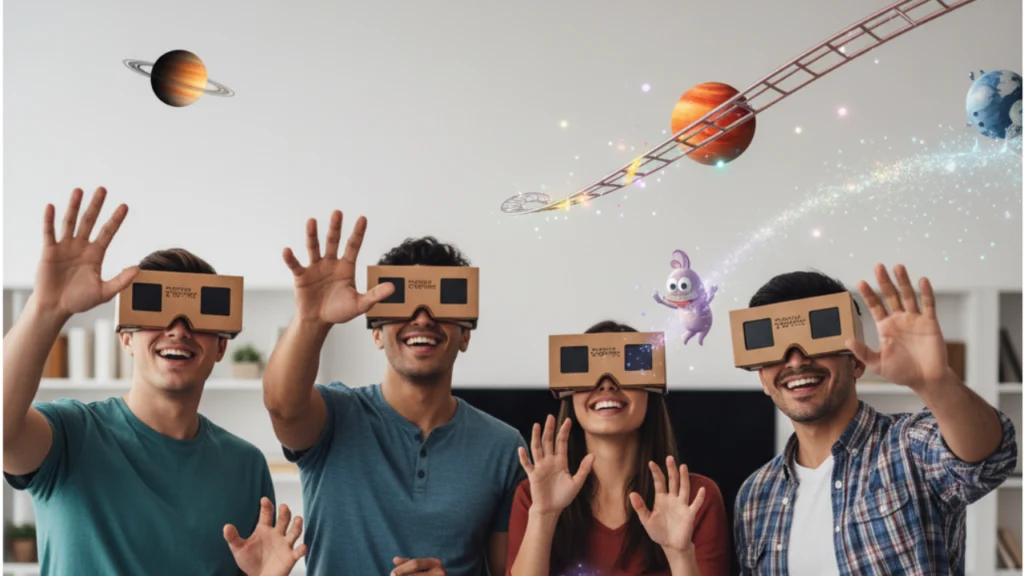
Google Cardboard is one of the simplest and most affordable ways to experience Virtual Reality using just your smartphone. Designed for beginners, Cardboard turns an ordinary device into a VR viewer capable of showing immersive 3D scenes, 360-degree videos, and interactive apps.
In this guide, you will learn exactly what Google Cardboard is, why it’s still relevant in 2026, how to set it up, how the Cardboard app works, which phones are compatible, the best VR apps, and useful tips to improve your experience.
Whether you are a student, a traveller, a creative, or someone who is simply curious about VR, this guide will help you get started in minutes.
What Exactly is Google Cardboard?
Google Cardboard is a low-cost VR headset made from simple materials. Mainly cardboard, plastic lenses, and a few holding parts are used. Although it looks basic, it creates surprisingly immersive VR experiences.
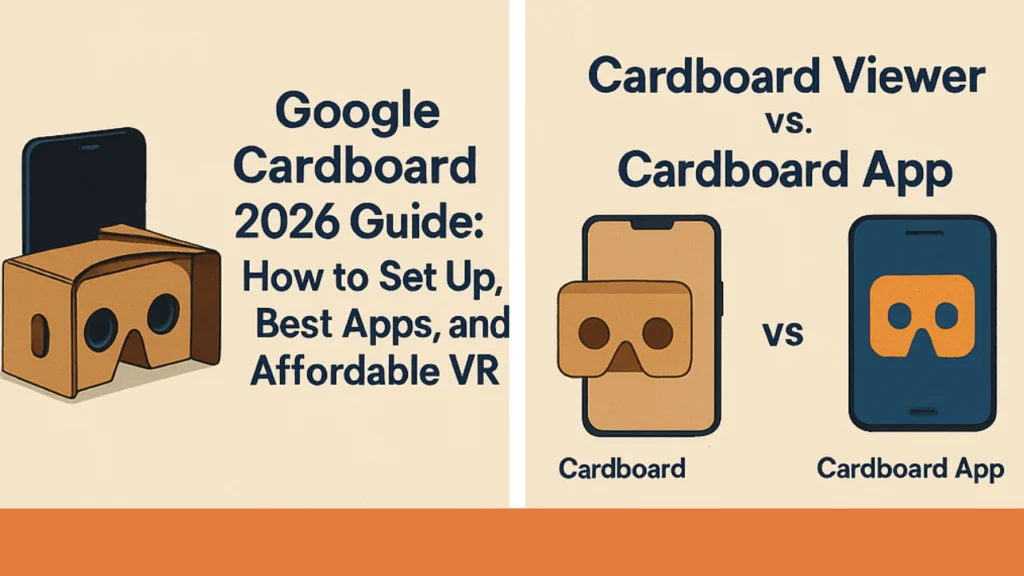
Cardboard Viewer vs. Cardboard App | Two Components
To understand Google Cardboard clearly, imagine it in two parts.
1. The Cardboard Viewer (Physical Device)
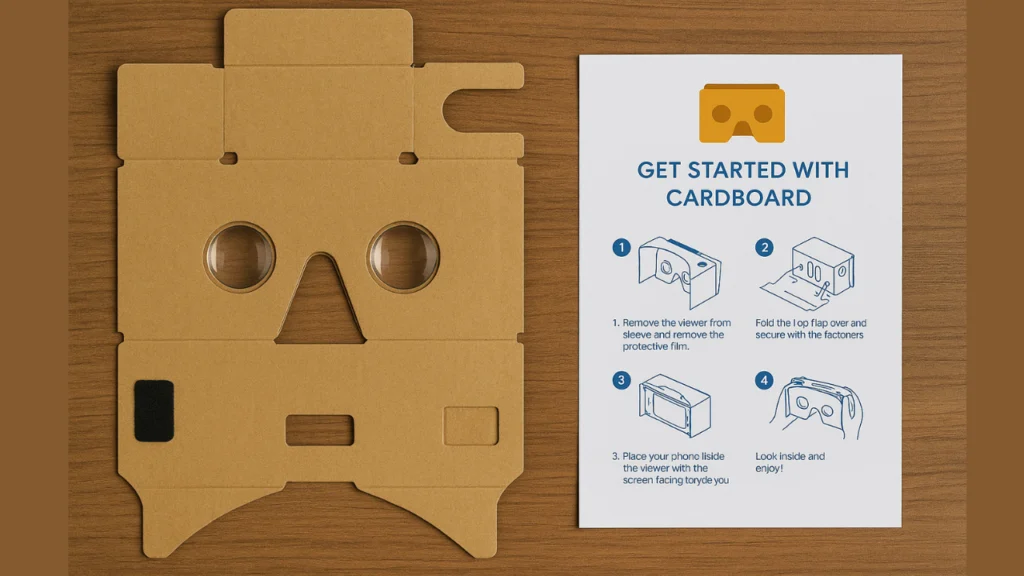
This is the foldable cardboard headset that holds your smartphone. It includes
- Two biconvex lenses
- A flap or slot for your phone
- A touch button or magnetic switch
- Velcro and rubber strips to keep everything in place
The viewer splits your phone screen into two images, one for each eye, creating a 3D effect.
2. The Cardboard App (Software Component)
The Cardboard app, available on the Google Play Store, helps you.
- Set up your headset
- Calibrate the viewer
- Explore VR demos
- Access VR content like games, videos, and tours
Mostly, compatible apps require this official app to run correctly.
Together, both parts form a complete beginner-friendly VR system.
The Technology: How Does a Piece of Cardboard Create 3D VR?
It may seem surprising that simple cardboard can create VR. But the secret lies in the lenses and your phone’s sensors.
Here’s how Cardboard creates VR:
- Screen Splitting: The viewer divides the smartphone screen into two equal parts.
- Lenses Shape the Image: Each lens refracts light, bending the image so your eyes see a 3D world.
- Gyroscope & Accelerometer: These smartphone sensors track your head movement.
- 360-Degree Motion: As you move your head, the virtual world moves with you.
That is why Cardboard still works beautifully today. Modern smartphones have even more powerful sensors and higher-resolution screens, making the VR experience clearer and smoother.
The Complete Google Cardboard Setup Process (Android & iOS)
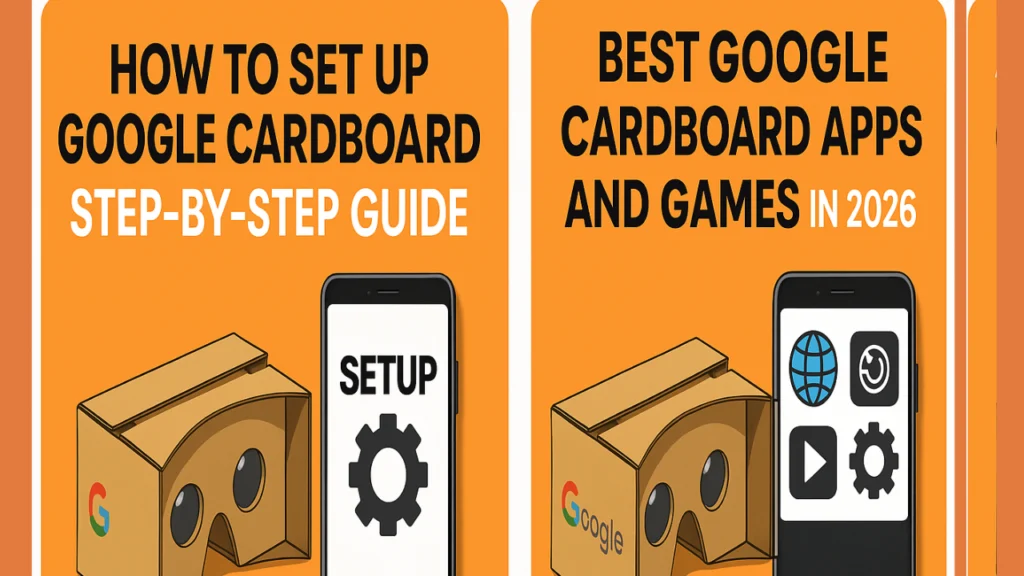
Below is a featured-snippet–optimized quick checklist:
How to Set Up Google Cardboard (Quick Steps)
- Check phone compatibility (screen size & gyroscope).
- Install the Cardboard app from the Google Play Store.
- Open the app and scan your viewer’s QR code.
- Place your phone inside the viewer.
- Adjust lenses and start exploring VR apps.
Now let’s go through the full steps.
Step 1: Check Your Phone’s Compatibility (A Critical Check)
Cardboard works with most Android and iOS phones, but you must check these things:
Phone Requirements
- Screen size between 4.5 to 6.5 inches
- Gyroscope and accelerometer for head tracking
- Android 7.0+ or iOS 13+
- Good screen resolution (1080p or higher recommended)
- Working camera (for AR/360 features)
Why the Gyroscope Matters
Without a gyroscope, your phone cannot track head movement correctly, and the VR experience will feel broken or static.
To check compatibility:
- Search: “Gyroscope test” in the Play Store.
- Install any free sensor test app.
If your device passes the test, you’re ready for VR.
Step 2: Downloading the Official Cardboard App from the Google Play Store
The official Google Cardboard app is required for setup and calibration.
How to Download
- Open the Google Play Store.
- Search for “Cardboard” (official app by Google LLC).
- Tap Install.
- Open the app and follow the instructions.
This app includes:
- VR demos
- Calibration tools
- Tutorials
- Access to Google’s recommended VR apps
If you are using iOS, search for Google Cardboard in the App Store.
Step 3: Pairing Your Viewer with the QR Code
Every certified Cardboard viewer has a unique QR code printed on the side or bottom.
Why This QR Code Is Important
The QR code adjusts:
- Lens shape
- Field of view
- Distortion correction
- Display alignment
Without this calibration, apps may appear blurry or misaligned.
How to Pair
- Open the Cardboard app.
- Tap Settings → Pair New Viewer.
- Scan the QR code on your headset.
- Wait for the confirmation message.
Once done, your viewer is fully ready for VR apps and experiences.
The Best Experiences: Must-Have Cardboard Apps and Games
Google Cardboard supports many apps for learning, entertainment, creativity, and exploration. Here are the top categories with recommendations.
For Exploration: Street View and Virtual Tours
Google Street View offers built-in VR mode for Cardboard. You can:
- Walk inside famous landmarks.
- Explore museums
- Travel to global destinations
- View user-submitted 360° photos.
Examples:
- Eiffel Tower
- Egyptian Pyramids
- Taj Mahal
- Grand Canyon
Perfect for students, travelers, and geography lovers.
For Creatives: Capturing 360° Photos with Cardboard Camera
Cardboard Camera lets you create your own VR photos.
You can:
- Take 360-degree images
- Capture sound with your photos.
- View your moments in VR.
- Share immersive scenes with friends.
This is a great tool for:
- Travel memories
- Outdoor adventures
- Creative storytelling
For Entertainment: Watching 360-Degree YouTube Videos
YouTube has one of the largest collections of VR and 360-degree video content.
Popular categories:
- Roller coaster rides
- Nature and wildlife
- Space exploration
- Animation
- Concerts and music videos
Just open YouTube, search for “360 video”, and tap the VR icon.
Free Games and Demos to Get Started
Some popular free Cardboard-compatible games include:
- VR Roller Coaster
- Dark Walls VR
- Hidden Temple VR Adventure
- Guardian VR
- VR X-Racer
These titles help beginners understand:
- Head tracking
- 3D environments
- Gaze-based selection
- VR immersion
Pro Tips for an Optimal Cardboard VR Experience
Even though Cardboard is simple, a few adjustments can improve your experience.
Dealing with Motion Sickness
Beginners sometimes feel VR motion discomfort. To avoid this:
- Take breaks every 5–7 minutes.
- Sit down while using the Cardboard.
- Keep your phone brightness high.
- Avoid shaky or fast-moving videos.
- Start with slow-paced experiences.
Your body will adjust over time.
Cleaning and Maintaining Your Cardboard Viewer
Although durable, Cardboard viewers need care.
Tips:
- Use a microfiber cloth to clean lenses.
- Avoid moisture or water.
- Store it in a dry place.
- Do not bend the cardboard joints.
- Replace worn Velcro strips.
This will help maintain clarity and comfort.
Input Methods: Using the Button or Gaze Control
Most Cardboard viewers include:
- A touch button
- A magnet button
- Or support for gaze-based controls
Gaze Control
This means selecting options by staring at them for a few seconds, perfect for games and apps without buttons.
Touch Button
Use this to:
- Select menus
- Trigger actions
- Interact with objects
Both input options work with the official Cardboard app.
To learn more, visit Google’s official Cardboard support page:
https://arvr.google.com/cardboard/
Conclusion: Is Google Cardboard Still Worth It in 2026?
Absolutely, Cardboard is still one of the most affordable and beginner-friendly ways to experience VR. For a few dollars, anyone can enjoy 360° videos, learn with virtual tours, take immersive photos, and explore many VR apps.
Even with advanced VR headsets available, Cardboard remains a cost-effective gateway to understanding how VR works. It’s perfect for students, families, teachers, hobbyists, and anyone curious about the virtual world.
If you want to begin your VR journey today, simply download the Cardboard app, check your phone compatibility, and start exploring a new world.
FAQs
You can add these at the bottom of your article or convert them into FAQ Schema.
1. What is Google Cardboard used for?
Google Cardboard turns your smartphone into a simple VR viewer, letting you explore virtual tours, watch 360° videos, play VR games, and view immersive educational content.
2. Is Google Cardboard still worth it in 2026?
Yes. Cardboard remains the cheapest and easiest way for beginners to try Virtual Reality without buying an expensive VR headset.
3. Does Google Cardboard work with iPhone and Android?
Yes. It works with most Android and iOS devices that have a gyroscope, accelerometer, and a screen size between 4.5 to 6.5 inches.
4. How do I set up Google Cardboard on my phone?
Install the Cardboard app from the Google Play Store, scan your viewer’s QR code, insert your phone into the headset, and begin exploring VR content.
5. What apps work with Google Cardboard?
Popular apps include YouTube VR, Google Street View, Cardboard Camera, and many free VR exploration and gaming apps in the Play Store.
6. Why is the QR code needed for Cardboard?
The QR code calibrates your VR viewer for lens shape, field of view, screen alignment, and distortion correction.
7. Can Google Cardboard make you motion sick?
Some beginners may feel discomfort. Short sessions, slow VR scenes, and good phone performance reduce motion sickness.
8. Can I watch 360-degree YouTube videos with Cardboard?
Yes. YouTube has thousands of 360° VR videos. Just tap the VR icon and place your phone inside the Cardboard viewer.
9. Do I need Wi-Fi to use Google Cardboard?
Many apps require an internet connection to download content, but most VR experiences work offline after installation.